




Enid
@iosdevalb.bsky.social
SwiftUI Tip 💡
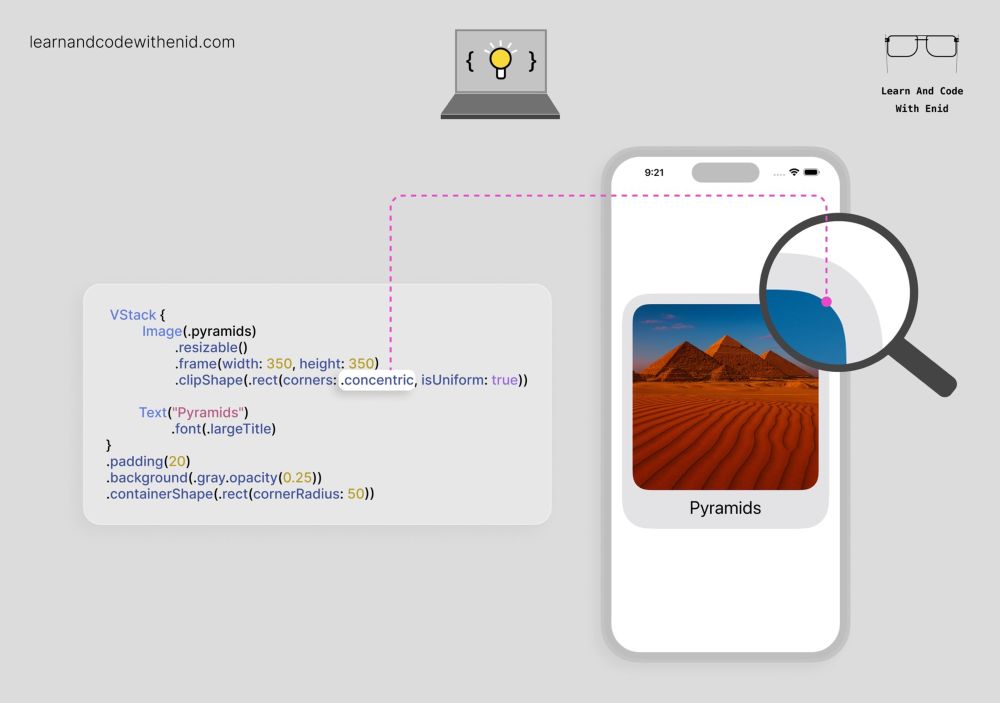
In iOS 26, you can apply concentric rounded corners to keep child views visually consistent with their parent.
→ learnandcodewithenid.com
In iOS 26, you can apply concentric rounded corners to keep child views visually consistent with their parent.
→ learnandcodewithenid.com
December 17, 2025 at 10:01 AM
SwiftUI Tip 💡
In iOS 26, you can apply concentric rounded corners to keep child views visually consistent with their parent.
→ learnandcodewithenid.com
In iOS 26, you can apply concentric rounded corners to keep child views visually consistent with their parent.
→ learnandcodewithenid.com

SwiftUI Tip 💡
Easily customize tab bar badge colors (normal & selected) with a few UIKit lines of code.
→ learnandcodewithenid.com
Easily customize tab bar badge colors (normal & selected) with a few UIKit lines of code.
→ learnandcodewithenid.com

December 16, 2025 at 1:48 PM
SwiftUI Tip 💡
Easily customize tab bar badge colors (normal & selected) with a few UIKit lines of code.
→ learnandcodewithenid.com
Easily customize tab bar badge colors (normal & selected) with a few UIKit lines of code.
→ learnandcodewithenid.com
SwiftUI Tip 💡
Use keyboardType() to show the most appropriate keyboard for your input.
(Updated for iOS 26 design)
→ learnandcodewithenid.com
Use keyboardType() to show the most appropriate keyboard for your input.
(Updated for iOS 26 design)
→ learnandcodewithenid.com

December 15, 2025 at 4:40 PM
SwiftUI Tip 💡
Use keyboardType() to show the most appropriate keyboard for your input.
(Updated for iOS 26 design)
→ learnandcodewithenid.com
Use keyboardType() to show the most appropriate keyboard for your input.
(Updated for iOS 26 design)
→ learnandcodewithenid.com
Reposted by Enid

Super useful! I did not know about this until now, thanks!
SwiftUI Tip 💡
Use submitLabel() to change the keyboard’s submit button to options like Next, Join, Search, or Done.
(Updated for iOS 26)
→ learnandcodewithenid.com
Use submitLabel() to change the keyboard’s submit button to options like Next, Join, Search, or Done.
(Updated for iOS 26)
→ learnandcodewithenid.com

December 12, 2025 at 10:41 AM
Super useful! I did not know about this until now, thanks!
SwiftUI Tip 💡
In iOS 26+, you can add ticks to a Slider using the ticks parameter.
Perfect for things like brightness, volume, or progress levels.
→ learnandcodewithenid.com
In iOS 26+, you can add ticks to a Slider using the ticks parameter.
Perfect for things like brightness, volume, or progress levels.
→ learnandcodewithenid.com

December 13, 2025 at 12:21 PM
SwiftUI Tip 💡
In iOS 26+, you can add ticks to a Slider using the ticks parameter.
Perfect for things like brightness, volume, or progress levels.
→ learnandcodewithenid.com
In iOS 26+, you can add ticks to a Slider using the ticks parameter.
Perfect for things like brightness, volume, or progress levels.
→ learnandcodewithenid.com
SwiftUI Tip 💡
Use submitLabel() to change the keyboard’s submit button to options like Next, Join, Search, or Done.
(Updated for iOS 26)
→ learnandcodewithenid.com
Use submitLabel() to change the keyboard’s submit button to options like Next, Join, Search, or Done.
(Updated for iOS 26)
→ learnandcodewithenid.com
December 12, 2025 at 10:21 AM
SwiftUI Tip 💡
Use submitLabel() to change the keyboard’s submit button to options like Next, Join, Search, or Done.
(Updated for iOS 26)
→ learnandcodewithenid.com
Use submitLabel() to change the keyboard’s submit button to options like Next, Join, Search, or Done.
(Updated for iOS 26)
→ learnandcodewithenid.com
SwiftUI Tip 💡
Instead of using multiple Spacer views to center content, you can simply use a view’s frame() modifier.
→ learnandcodewithenid.com
Instead of using multiple Spacer views to center content, you can simply use a view’s frame() modifier.
→ learnandcodewithenid.com

December 11, 2025 at 7:43 PM
SwiftUI Tip 💡
Instead of using multiple Spacer views to center content, you can simply use a view’s frame() modifier.
→ learnandcodewithenid.com
Instead of using multiple Spacer views to center content, you can simply use a view’s frame() modifier.
→ learnandcodewithenid.com
SwiftUI Tip 💡
You can create nested menus simply by placing a Menu inside another Menu.
→ learnandcodewithenid.com
You can create nested menus simply by placing a Menu inside another Menu.
→ learnandcodewithenid.com

December 11, 2025 at 12:53 PM
SwiftUI Tip 💡
You can create nested menus simply by placing a Menu inside another Menu.
→ learnandcodewithenid.com
You can create nested menus simply by placing a Menu inside another Menu.
→ learnandcodewithenid.com
Xcode Tip 💡
Not ready for Liquid Glass yet? Temporarily fall back to the classic UI by setting:
UIDesignRequiresCompatibility → YES
in your app’s Info.plist.
→ learnandcodewithenid.com
Not ready for Liquid Glass yet? Temporarily fall back to the classic UI by setting:
UIDesignRequiresCompatibility → YES
in your app’s Info.plist.
→ learnandcodewithenid.com

December 10, 2025 at 2:28 PM
Xcode Tip 💡
Not ready for Liquid Glass yet? Temporarily fall back to the classic UI by setting:
UIDesignRequiresCompatibility → YES
in your app’s Info.plist.
→ learnandcodewithenid.com
Not ready for Liquid Glass yet? Temporarily fall back to the classic UI by setting:
UIDesignRequiresCompatibility → YES
in your app’s Info.plist.
→ learnandcodewithenid.com
SwiftUI Tip 💡
In iOS 26.0+, we have two new button roles: .close and .confirm.
→ learnandcodewithenid.com
In iOS 26.0+, we have two new button roles: .close and .confirm.
→ learnandcodewithenid.com

December 10, 2025 at 1:37 PM
SwiftUI Tip 💡
In iOS 26.0+, we have two new button roles: .close and .confirm.
→ learnandcodewithenid.com
In iOS 26.0+, we have two new button roles: .close and .confirm.
→ learnandcodewithenid.com
SwiftUI - Understanding DatePicker (Part 3) is now available to LACWE members 🎉
4 new visuals
→ learnandcodewithenid.com
4 new visuals
→ learnandcodewithenid.com

December 9, 2025 at 6:00 PM
SwiftUI - Understanding DatePicker (Part 3) is now available to LACWE members 🎉
4 new visuals
→ learnandcodewithenid.com
4 new visuals
→ learnandcodewithenid.com
SwiftUI Tip 💡
You can add a custom preview to your context menu using the 'preview' parameter.
Perfect for showing more details before the user chooses an action.
→ learnandcodewithenid.com
You can add a custom preview to your context menu using the 'preview' parameter.
Perfect for showing more details before the user chooses an action.
→ learnandcodewithenid.com

December 4, 2025 at 12:29 PM
SwiftUI Tip 💡
You can add a custom preview to your context menu using the 'preview' parameter.
Perfect for showing more details before the user chooses an action.
→ learnandcodewithenid.com
You can add a custom preview to your context menu using the 'preview' parameter.
Perfect for showing more details before the user chooses an action.
→ learnandcodewithenid.com
SwiftUI - Understanding DatePicker (Part 2) is now available to LACWE members 🎉
4 new visuals
→ learnandcodewithenid.com
4 new visuals
→ learnandcodewithenid.com

December 3, 2025 at 9:11 PM
SwiftUI - Understanding DatePicker (Part 2) is now available to LACWE members 🎉
4 new visuals
→ learnandcodewithenid.com
4 new visuals
→ learnandcodewithenid.com
SwiftUI Tip 💡
By default, containers like VStack apply built-in spacing.
You can remove it by passing 0 to the spacing parameter.
→ learnandcodewithenid.com
By default, containers like VStack apply built-in spacing.
You can remove it by passing 0 to the spacing parameter.
→ learnandcodewithenid.com

December 3, 2025 at 3:00 PM
SwiftUI Tip 💡
By default, containers like VStack apply built-in spacing.
You can remove it by passing 0 to the spacing parameter.
→ learnandcodewithenid.com
By default, containers like VStack apply built-in spacing.
You can remove it by passing 0 to the spacing parameter.
→ learnandcodewithenid.com
SwiftUI Tip 💡
In iOS 17.0+, use listSectionSpacing() to control the vertical space between sections in a List.
→ learnandcodewithenid.com
In iOS 17.0+, use listSectionSpacing() to control the vertical space between sections in a List.
→ learnandcodewithenid.com

December 2, 2025 at 1:51 PM
SwiftUI Tip 💡
In iOS 17.0+, use listSectionSpacing() to control the vertical space between sections in a List.
→ learnandcodewithenid.com
In iOS 17.0+, use listSectionSpacing() to control the vertical space between sections in a List.
→ learnandcodewithenid.com
SwiftUI Tip 💡
In iOS 17.0+, use the badgeProminence() modifier to control how noticeable a badge appears.
→ learnandcodewithenid.com
In iOS 17.0+, use the badgeProminence() modifier to control how noticeable a badge appears.
→ learnandcodewithenid.com

December 2, 2025 at 12:18 PM
SwiftUI Tip 💡
In iOS 17.0+, use the badgeProminence() modifier to control how noticeable a badge appears.
→ learnandcodewithenid.com
In iOS 17.0+, use the badgeProminence() modifier to control how noticeable a badge appears.
→ learnandcodewithenid.com
SwiftUI Tip 💡
By default, a scroll view clips anything that extends past its bounds.
In iOS 17.0+, use scrollClipDisabled() to let items extend beyond the scroll view’s bounds.
→ learnandcodewithenid.com
By default, a scroll view clips anything that extends past its bounds.
In iOS 17.0+, use scrollClipDisabled() to let items extend beyond the scroll view’s bounds.
→ learnandcodewithenid.com

December 1, 2025 at 2:55 PM
SwiftUI Tip 💡
By default, a scroll view clips anything that extends past its bounds.
In iOS 17.0+, use scrollClipDisabled() to let items extend beyond the scroll view’s bounds.
→ learnandcodewithenid.com
By default, a scroll view clips anything that extends past its bounds.
In iOS 17.0+, use scrollClipDisabled() to let items extend beyond the scroll view’s bounds.
→ learnandcodewithenid.com
🚀 As always, new chapters, lessons, and updates are on the way.
You can join with a 50% lifetime discount on the yearly plan — the offer expires soon.
→ learnandcodewithenid.com
You can join with a 50% lifetime discount on the yearly plan — the offer expires soon.
→ learnandcodewithenid.com

November 30, 2025 at 2:35 PM
🚀 As always, new chapters, lessons, and updates are on the way.
You can join with a 50% lifetime discount on the yearly plan — the offer expires soon.
→ learnandcodewithenid.com
You can join with a 50% lifetime discount on the yearly plan — the offer expires soon.
→ learnandcodewithenid.com
SwiftUI Tip 💡
In iOS 26.0+, you can finally display a subtitle in the navigation bar using the navigationSubtitle() modifier.
→ learnandcodewithenid.com
In iOS 26.0+, you can finally display a subtitle in the navigation bar using the navigationSubtitle() modifier.
→ learnandcodewithenid.com

November 30, 2025 at 12:59 PM
SwiftUI Tip 💡
In iOS 26.0+, you can finally display a subtitle in the navigation bar using the navigationSubtitle() modifier.
→ learnandcodewithenid.com
In iOS 26.0+, you can finally display a subtitle in the navigation bar using the navigationSubtitle() modifier.
→ learnandcodewithenid.com
SwiftUI Tip 💡
In iOS 17.0+, use navigationLinkIndicatorVisibility() to control whether a NavigationLink shows its disclosure indicator.
Perfect for cleaner lists, or when you want full control over row styling.
→ learnandcodewithenid.com
In iOS 17.0+, use navigationLinkIndicatorVisibility() to control whether a NavigationLink shows its disclosure indicator.
Perfect for cleaner lists, or when you want full control over row styling.
→ learnandcodewithenid.com

November 29, 2025 at 10:03 PM
SwiftUI Tip 💡
In iOS 17.0+, use navigationLinkIndicatorVisibility() to control whether a NavigationLink shows its disclosure indicator.
Perfect for cleaner lists, or when you want full control over row styling.
→ learnandcodewithenid.com
In iOS 17.0+, use navigationLinkIndicatorVisibility() to control whether a NavigationLink shows its disclosure indicator.
Perfect for cleaner lists, or when you want full control over row styling.
→ learnandcodewithenid.com
SwiftUI - Understanding DatePicker (Part 1) is now available to LACWE members 🎉
5 new visuals
→ learnandcodewithenid.com
5 new visuals
→ learnandcodewithenid.com

November 29, 2025 at 3:47 PM
SwiftUI - Understanding DatePicker (Part 1) is now available to LACWE members 🎉
5 new visuals
→ learnandcodewithenid.com
5 new visuals
→ learnandcodewithenid.com
SwiftUI Tip 💡
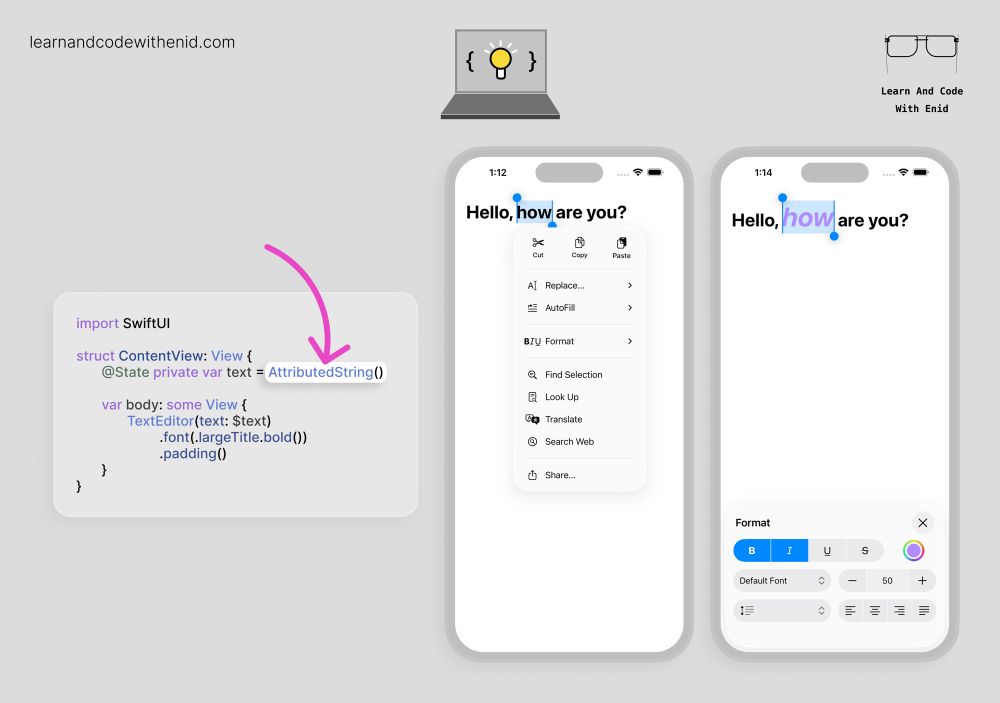
In iOS 26.0+, TextEditor supports rich text editing when you bind it to an AttributedString.
This instantly unlocks system-native formatting tools - bold, italics, underline, colors, alignment, and more.
→ learnandcodewithenid.com
In iOS 26.0+, TextEditor supports rich text editing when you bind it to an AttributedString.
This instantly unlocks system-native formatting tools - bold, italics, underline, colors, alignment, and more.
→ learnandcodewithenid.com
November 29, 2025 at 1:41 PM
SwiftUI Tip 💡
In iOS 26.0+, TextEditor supports rich text editing when you bind it to an AttributedString.
This instantly unlocks system-native formatting tools - bold, italics, underline, colors, alignment, and more.
→ learnandcodewithenid.com
In iOS 26.0+, TextEditor supports rich text editing when you bind it to an AttributedString.
This instantly unlocks system-native formatting tools - bold, italics, underline, colors, alignment, and more.
→ learnandcodewithenid.com
SwiftUI Tip 💡
In iOS 17+, you can choose where your scroll view starts scrolling from using defaultScrollAnchor().
For example, use .top to begin at the start, or .bottom to jump to the latest content - perfect for chat views or message feeds.
→ learnandcodewithenid.com
In iOS 17+, you can choose where your scroll view starts scrolling from using defaultScrollAnchor().
For example, use .top to begin at the start, or .bottom to jump to the latest content - perfect for chat views or message feeds.
→ learnandcodewithenid.com

November 28, 2025 at 1:46 PM
SwiftUI Tip 💡
In iOS 17+, you can choose where your scroll view starts scrolling from using defaultScrollAnchor().
For example, use .top to begin at the start, or .bottom to jump to the latest content - perfect for chat views or message feeds.
→ learnandcodewithenid.com
In iOS 17+, you can choose where your scroll view starts scrolling from using defaultScrollAnchor().
For example, use .top to begin at the start, or .bottom to jump to the latest content - perfect for chat views or message feeds.
→ learnandcodewithenid.com
SwiftUI Tip 💡
You can control where the popover’s arrow appears - top, bottom, leading, or trailing - using the arrowEdge parameter.
Perfect for creating context-aware popovers.
→ learnandcodewithenid.com
You can control where the popover’s arrow appears - top, bottom, leading, or trailing - using the arrowEdge parameter.
Perfect for creating context-aware popovers.
→ learnandcodewithenid.com

November 27, 2025 at 8:29 PM
SwiftUI Tip 💡
You can control where the popover’s arrow appears - top, bottom, leading, or trailing - using the arrowEdge parameter.
Perfect for creating context-aware popovers.
→ learnandcodewithenid.com
You can control where the popover’s arrow appears - top, bottom, leading, or trailing - using the arrowEdge parameter.
Perfect for creating context-aware popovers.
→ learnandcodewithenid.com